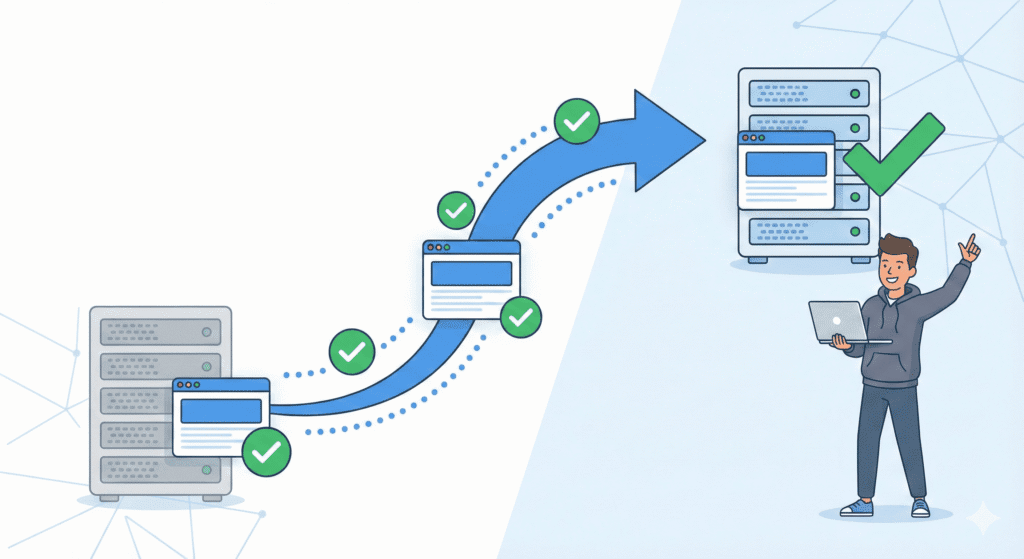
Switching a web host can feel scary, especially for beginners in the US. Many website owners worry about downtime, lost data, broken pages, or emails not working.
The fear is real. If something goes wrong during a migration, your website could go offline, visitors could see errors, or important database data could be lost. For business owners, even a short outage can affect trust and sales.
This guide exists to remove that fear.
You’ll learn how to switch web hosts without downtime and headaches, using a safe and proven process. We’ll cover what’s realistic, how to prepare, and how to move your website to a new host without losing traffic, emails, or rankings.
This is a practical US-focused guide, written for beginners, with no confusing technical jargon.
What Does “Downtime-Free” Hosting Migration Mean?
Let’s be clear about expectations.
Downtime means your website is unavailable to visitors. This can happen when:
- DNS changes aren’t ready
- The server is misconfigured
- Files or the database aren’t fully transferred
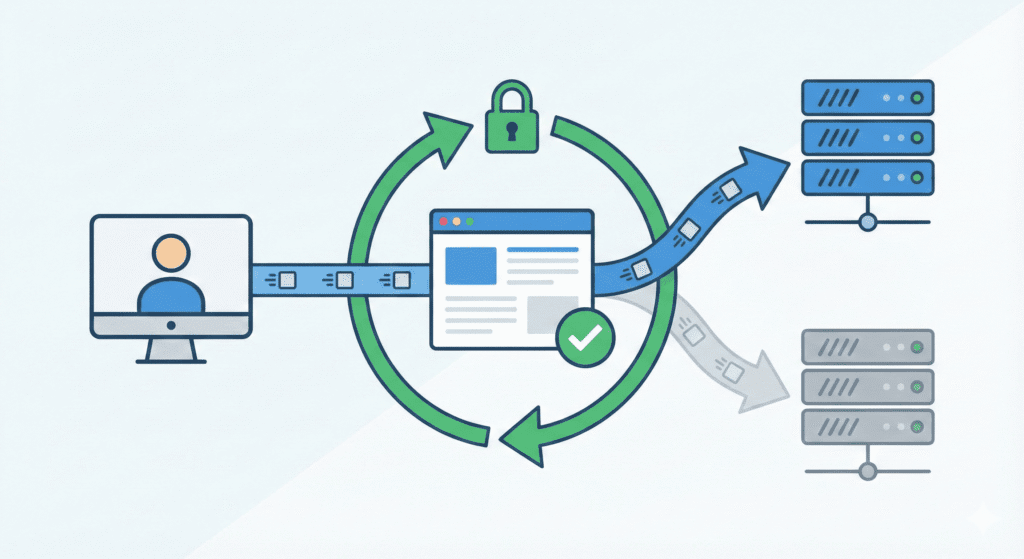
A truly perfect migration with zero downtime is rare, but minimal downtime or switching without downtime for users is absolutely achievable.
In most cases, visitors won’t notice anything at all if:
- The old host stays active
- DNS is updated at the right time
- The site is fully tested before going live
The goal is to keep your site live on the new host before traffic switches over.
When Should You Switch Web Hosts?
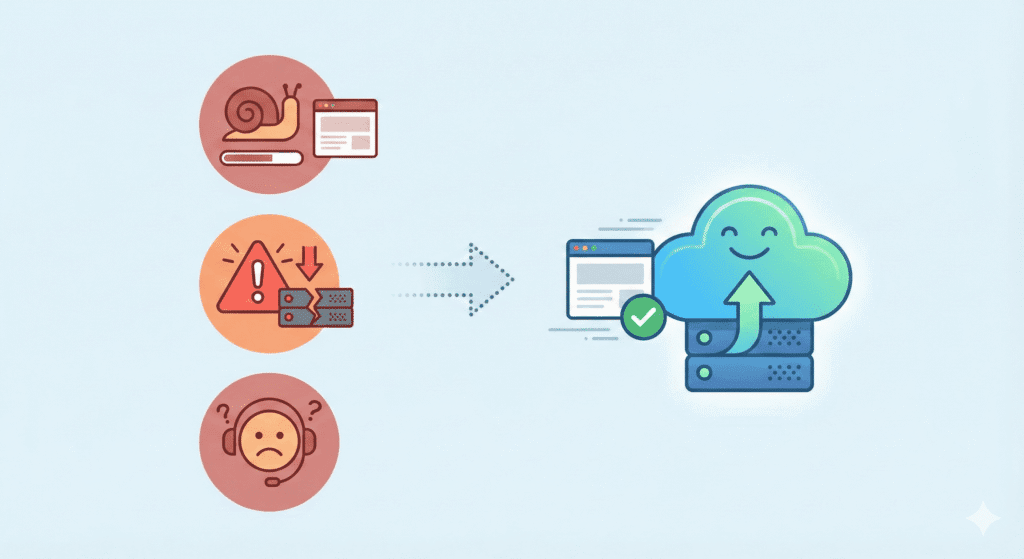
Switching hosting isn’t something you do for fun. It’s usually triggered by problems with your current setup.
1. Performance Problems
If your site feels slow or unstable, your hosting provider may be the issue. Poor server resources, overloaded systems, or outdated infrastructure can hurt performance.
2. Frequent Downtime
If your site goes offline often, even with a good uptime promise, that’s a red flag. Frequent downtime affects trust, SEO, and business operations.
3. Poor Support
When something breaks and support doesn’t help, it’s time to consider switching hosts. A reliable hosting provider should help during issues, especially during a migration process.
4. Better Pricing or Features Elsewhere
Many hosting companies offer better performance, migration services, or US-based servers at competitive prices. Sometimes switching to a new hosting provider simply makes sense.
Why Timing Matters When You Switch Web Hosting
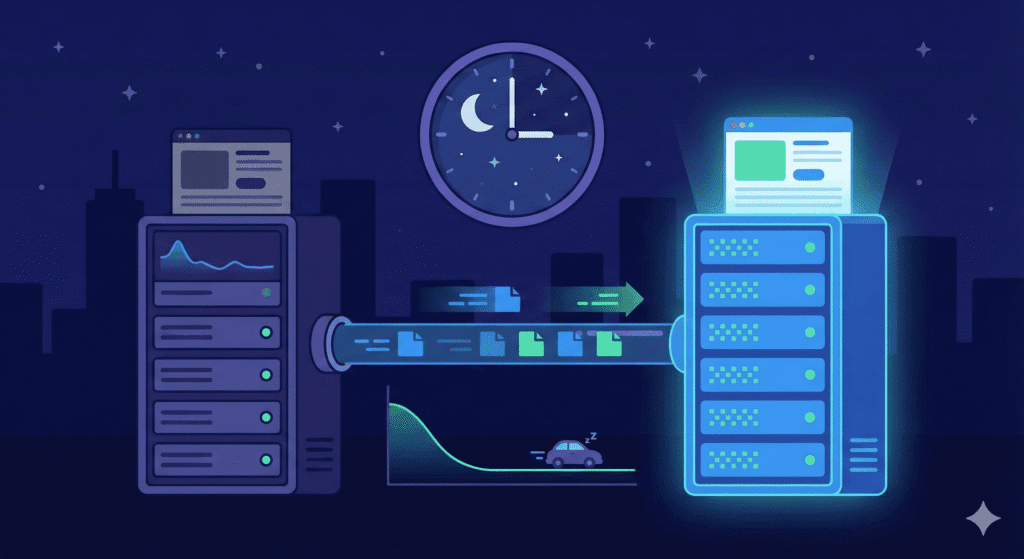
Choosing the right moment helps avoid headaches.
- Switch during low traffic hours
- Avoid active promotions or launches
- Keep your current host active until everything is confirmed
Good timing plays a big role in minimizing downtime and ensuring a smooth migration.
What to Do Before Switching Web Hosts

Before you switch web hosting, preparation matters more than speed. Most downtime happens because people rush this part.
Let’s keep it simple and safe.
1. Back Up Your Entire Website (Non-Negotiable)
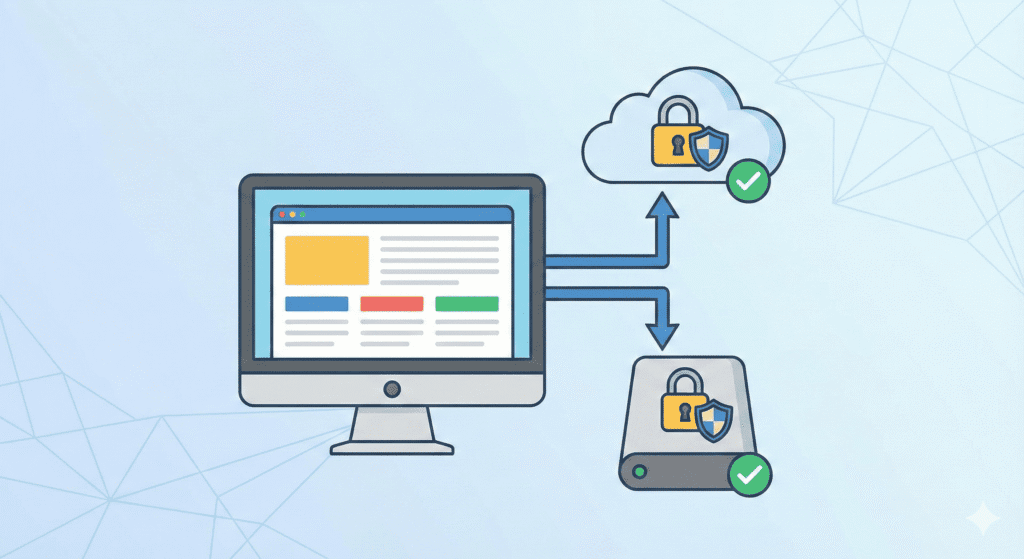
Before any migration, you must back up your website completely.
This includes:
- Website files
- Your database
- Media uploads
- Configuration files
If something goes wrong during the migration process, this backup is your safety net. Without it, data loss becomes a real risk.
Most hosting services offer backups, but don’t assume they’re enough. Personally, I always recommend keeping your own copy as well.
At minimum, you should have:
- One full backup stored locally
- One backup stored off your server
This step alone prevents most disasters.
2. Keep Your Old Host Active
Here’s a common mistake beginners make:
They cancel the old host too early.
Don’t do that.
Your website should stay live on the old hosting account until:
- The site is fully working on the new host
- DNS changes are complete
- Emails and forms are tested
Keeping the old hosting active ensures you can switch back quickly if something goes wrong.
This single step is critical for switching without losing visitors.
3. Choose the Right Time to Migrate
Timing matters more than people think.
For US websites:
- Late night or early morning EST works best
- Avoid weekends if support is slower
- Avoid live campaigns or launches
The goal is minimizing downtime while traffic is low.
Choose a New Web Host the Right Way
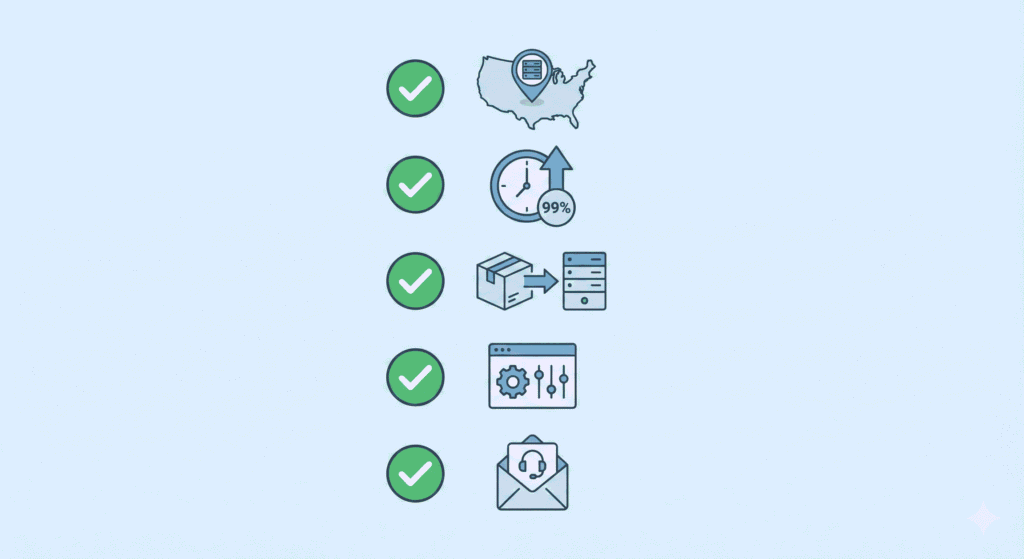
Not all hosts are equal. Choosing the wrong new host can create the same problems you’re trying to escape.
Here’s what US website owners should focus on.
1. US Server Locations Matter
A new server located in the US usually means:
- Faster load times
- Better reliability
- Improved visitor experience
Ask your hosting provider where their servers are located. This matters more than flashy marketing claims.
2. Proven Reliability and Uptime
Look for:
- Consistent uptime history
- Transparent status pages
- Real customer reviews
A reliable hosting provider helps prevent frequent downtime after migration.
3. Migration Support Is a Big Advantage
Many hosting companies offer:
- Free migration
- Assisted migration services
- Step-by-step guidance
If you’re a beginner, a migration service can save hours of stress. Some providers even handle database and file transfer for you.
This is especially helpful if you’re moving a WordPress site.
4. Control Panel Familiarity
A clean control panel makes migration easier.
You’ll likely need access to:
- File manager or FTP
- phpMyAdmin for database tasks
- DNS settings
Exploring the control panel early helps you avoid mistakes later.
5. Email Migration Support
If your email accounts are tied to hosting, confirm how email migration works.
Some hosts include email migration. Others don’t.
Missing this step can cause email downtime, even if the website works fine.
Common Preparation Mistakes That Cause Downtime
Let’s be real for a second. Most downtime issues happen because of these mistakes:
- Skipping backups
- Canceling the old hosting account early
- Switching DNS before testing
- Choosing a new provider without migration support
Avoiding these mistakes puts you ahead of most beginners.
Main Ways to Switch Web Hosts Without Downtime
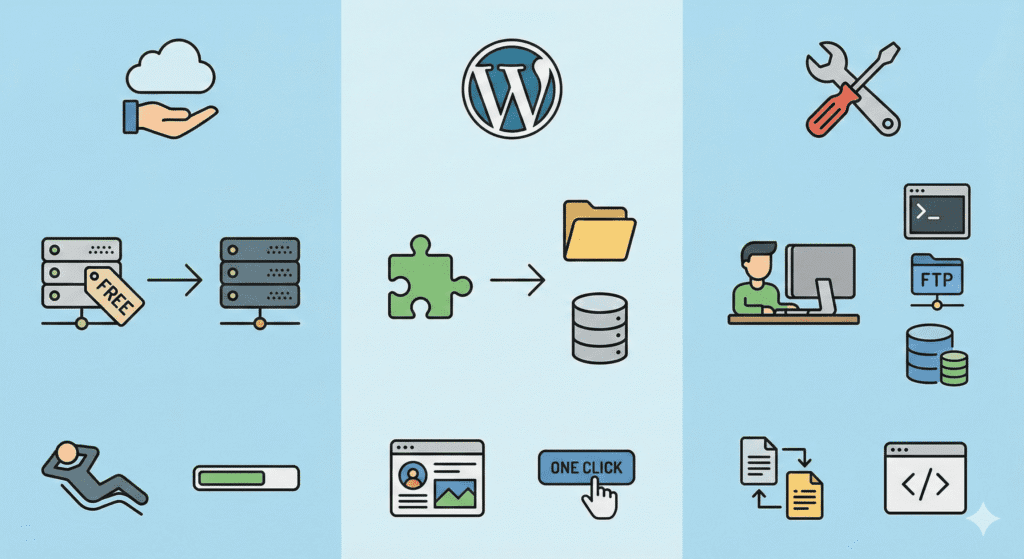
There isn’t just one way to switch web hosting. The best method depends on:
- Your website type
- Your skill level
- The support your hosting provider offers
Let’s break down the three safest migration methods used by most US website owners.
Method 1: Using Free Migration Services (Easiest Option)
Many modern hosting companies offer free migration as part of their hosting services.
How Host-Assisted Migration Works
- You create a new hosting account
- You request migration
- The new host copies your website files and database
- You test the site before DNS changes
This method is ideal if:
- You’re a beginner
- You don’t want to deal with FTP or databases
- You want the lowest risk of downtime
A reliable hosting provider often handles:
- Website migration
- Database migration
- Basic email migration
This is the safest way to switch web hosts without downtime.
Method 2: Using Migration Plugins or Tools
This is common for WordPress websites.
A migration plugin helps you:
- Export your website files
- Move the database
- Import everything to the new host
When This Method Works Well
- You have a WordPress site
- The site size is moderate
- You want more control
However, plugin-based migration may struggle with:
- Very large websites
- Limited server resources
- Timeout errors
Still, it’s a popular option for switching hosts safely.
Method 3: Manual Migration (Advanced but Reliable)
Manual migration gives full control but requires careful steps.
This method involves:
- Downloading website files via FTP
- Exporting the database using phpMyAdmin
- Uploading files to the new server
- Creating a new database
- Updating configuration files
Manual migration is useful when:
- Plugins fail
- You’re moving between very different hosting environments
- You need custom setup
If done correctly, manual migration supports minimal downtime.
Step-by-Step: How to Switch Web Hosts Safely
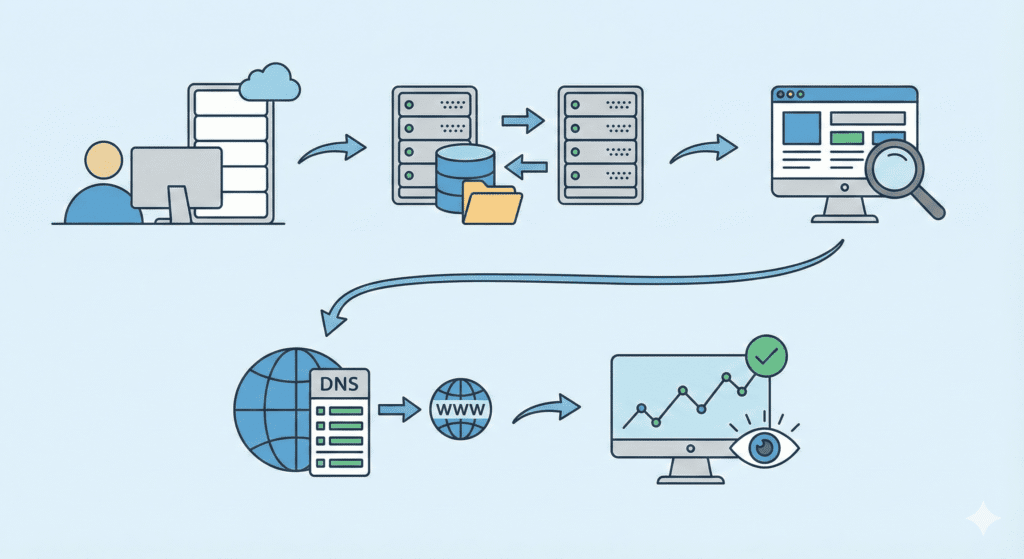
Below is a simplified step-by-step overview that applies to most websites.
Step 1: Set Up the New Hosting Account
Start by creating your new hosting account.
Inside the control panel, you’ll typically:
- Add your domain name
- Set up a hosting plan
- Prepare the server environment
Don’t change DNS yet.
Step 2: Move Website Files and Database
Depending on the method you choose:
- Migration service: handled for you
- Plugin: export and import
- Manual: upload files and import database
Make sure:
- All website files are copied
- The database is fully imported
- File permissions are correct
This step is the core of the migration process.
Step 3: Update Configuration Files
Some websites require small updates:
- Database name
- Database user
- Database password
These settings connect your site to the new database.
If these values are wrong, the website won’t load.
Step 4: Test the Site on the New Host
Before going live, test everything.
Most hosting providers offer:
- Temporary URLs
- Preview links
- Hosts file testing
Check:
- Pages and posts
- Images
- Forms
- Login areas
- Speed and errors
This step helps avoid broken links and surprises after switching.
Step 5: Update DNS or Nameservers
Once the site works perfectly on the new host, it’s time to update DNS.
You can:
- Change nameservers
- Or update DNS records
DNS propagation in the US usually takes:
- A few minutes to several hours
- Up to 48 hours in rare cases
During this time:
- Some visitors may see the old site
- Others may see the new site
That’s normal.
Step 6: Monitor the Website After the Switch
After DNS updates:
- Monitor uptime
- Check traffic
- Test forms and email accounts
Keep the old host active for at least 48 hours.
This ensures a smooth transition without losing users.
Why This Process Prevents Downtime
Downtime happens when:
- DNS is changed too early
- Files aren’t tested
- The old host is canceled too soon
Following this step-by-step process allows your site to:
- Stay live during the move
- Transition smoothly
- Avoid broken pages and lost data
That’s how professionals handle website migration.
How to Handle DNS Changes Without Downtime
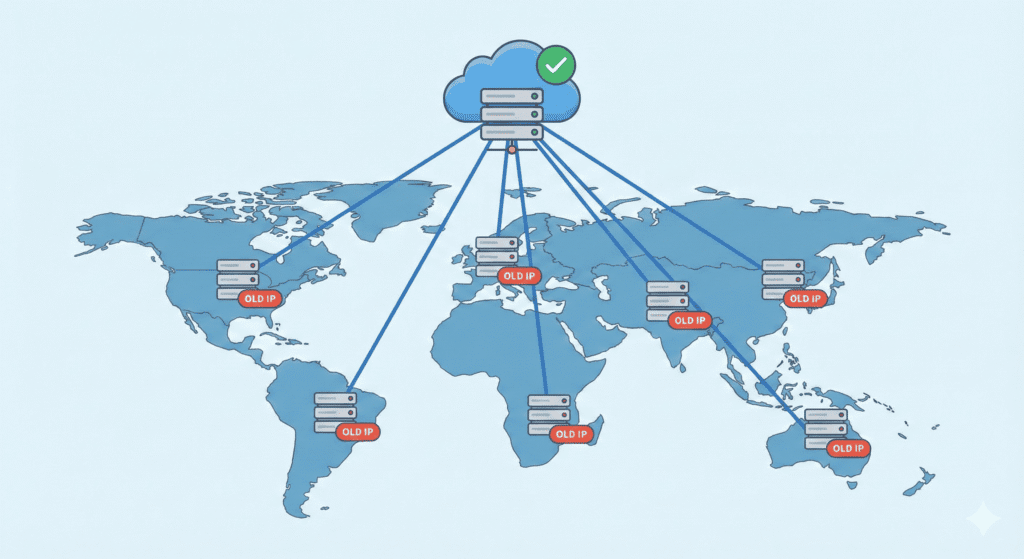
DNS is usually where things go wrong. Most downtime happens because DNS is changed too early or incorrectly.
Here’s the simple way to handle it.
Nameservers vs DNS Records (Simple Explanation)
When you switch web hosts, you can update DNS in two ways:
- Nameservers: Point your domain to the new hosting provider completely
- DNS records: Manually point specific records (A record, MX, etc.)
For beginners, changing nameservers is usually easier and safer.
Before updating DNS:
- Make sure the website works on the new host
- Confirm email accounts are ready
- Keep the old host active
Once you update DNS, traffic starts moving to the new server gradually.
How Long Does It Take to Switch Web Hosts?
This is one of the biggest fears for US website owners.
Typical Migration Timeline
- File transfer & database migration:
30 minutes to a few hours (depends on site size) - DNS propagation:
Usually a few hours in the US
In rare cases, it can take up to 48 hours
During DNS propagation:
- Some visitors see the old site
- Others see the new site
That’s normal and doesn’t mean downtime.
If done correctly, your website stays live the entire time.
How to Test Your Website Before Going Live
Testing is what prevents downtime and headaches.
Before switching DNS, check:
- Homepage loads correctly
- Internal pages work
- Images display properly
- Forms submit without errors
- Login pages function
- Email accounts send and receive
Most hosting services provide:
- Temporary URLs
- Preview links
- Control panel testing tools
If something breaks later, you’ll know it wasn’t the migration.
Common Mistakes That Cause Downtime
These mistakes are very common, especially for beginners.
1. Canceling Old Hosting Too Early
Never cancel the old host immediately.
Keep it active for at least 48 hours after DNS changes.
2. Skipping Backups
Always back up your website files and database before migration.
This protects you if something goes wrong.
3. Changing DNS Before Testing
If you point DNS before testing the new server, visitors may see broken pages.
4. Forgetting Email Accounts
Email migration is separate from website migration.
Always check MX records and email settings.
Avoid these mistakes, and downtime is unlikely.
Will Switching Web Hosts Affect SEO?
Short answer: Not if done correctly.
What Can Affect SEO Temporarily
- Short DNS propagation
- Temporary caching differences
- Minor speed changes
How to Protect Rankings
- Avoid downtime
- Keep URLs the same
- Don’t change content during migration
- Make sure SSL works properly
If anything, switching to a better hosting provider often improves:
- Site speed
- Reliability
- Overall performance
That helps SEO in the long run.
Is Switching Web Hosts Hard for Beginners?
Honestly? It depends on the method.
Beginner-Friendly Options
- Free migration services
- Hosting provider support
- Guided migration tools
If you’re not technical, use host-assisted migration. That’s what support teams are there for.
Manual migration is better left to advanced users.
FAQs – Switching Web Hosts
Can I switch web hosts without downtime?
Yes. If you test first, keep the old host active, and update DNS correctly.
Will my emails be affected?
They can be if MX records aren’t handled properly. Always double-check email settings.
What if something breaks?
Restore from backup or contact the new hosting provider’s support team.
Can I switch back if needed?
Yes, as long as you haven’t canceled the old hosting account.
What Should You Do After Switching Web Hosts?
Once migration is complete:
- Monitor uptime and performance
- Set up automated backups
- Review security settings
- Check site speed
- Cancel old hosting only after confirming stability
This ensures your site runs smoothly on the new server.
Final Thoughts
Switching web hosts doesn’t have to be stressful.
Most downtime horror stories happen because:
- People rush
- They skip testing
- They cancel old hosting too early
If you follow the steps in this guide:
- Your website stays online
- Your data stays safe
- Your visitors won’t notice the move
Bottom line?
With the right preparation, you can switch web hosts without downtime and without headaches, even as a beginner.