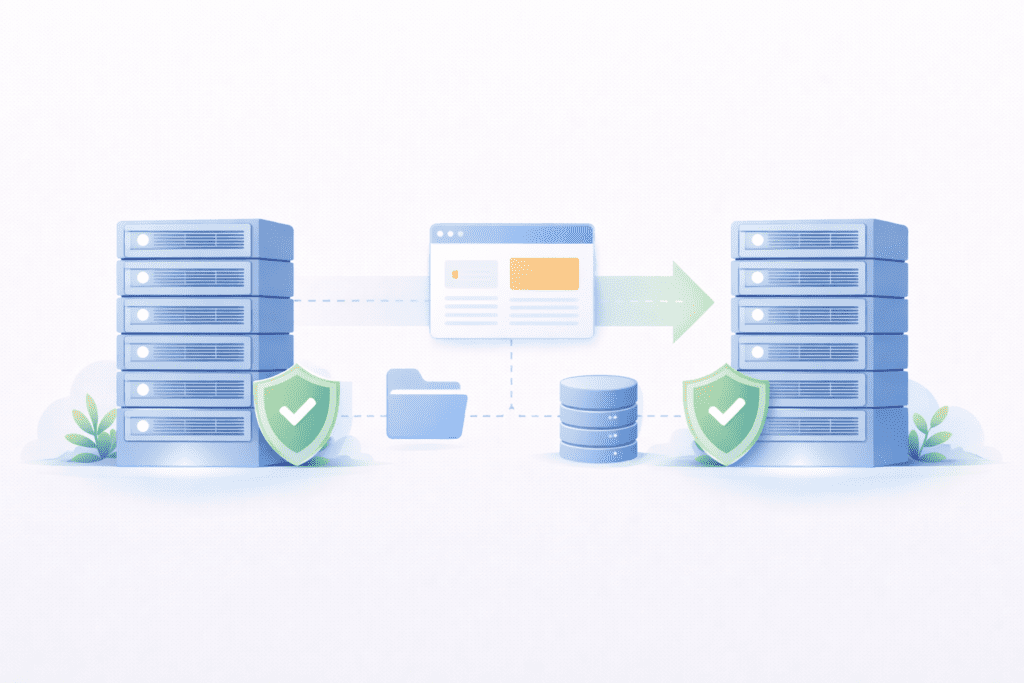
One of the most common mistakes people make is cancel web hosting before preparing their data.
It sounds simple. You log into your hosting account, click cancel, and assume everything will be fine.
But once you cancel web hosting without preparation, your server files, databases, and email accounts may disappear. Some hosts permanently delete data after cancellation or when the hosting service is terminated.
That’s why preparation matters.
If you want to cancel web hosting safely, you must first secure your backups, confirm control of your domain, and review any services connected to the hosting plan.
This guide explains how to cancel web hosting step by step while protecting your website files, email accounts, and domain settings.
What It Means to Cancel Web Hosting
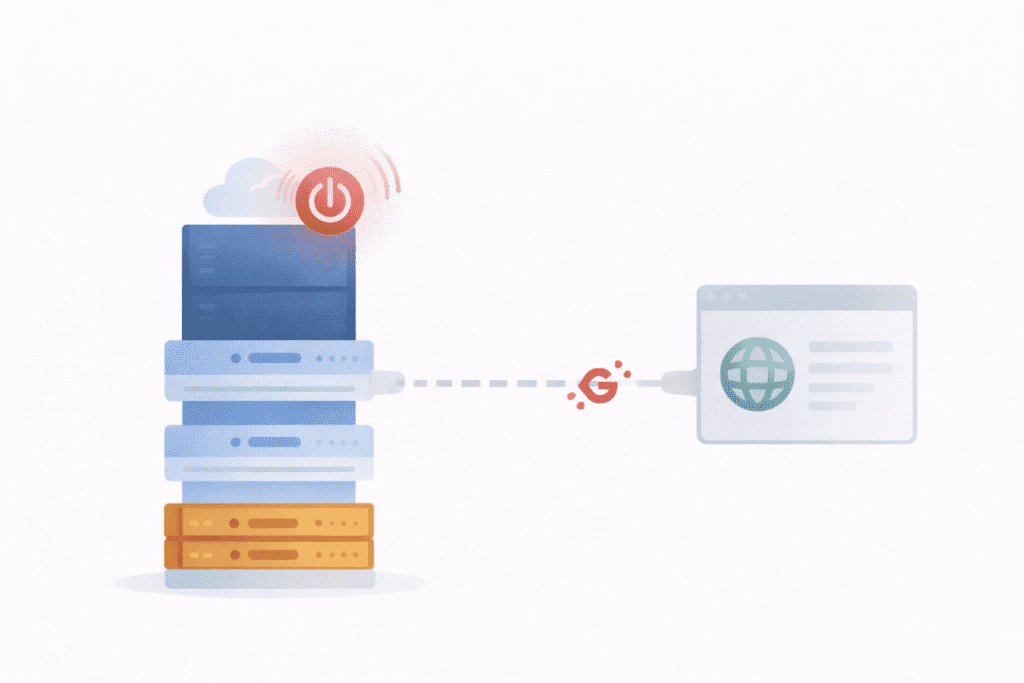
When you cancel web hosting, you’re ending your hosting service with a web hosting provider.
Your host stops providing server space for your website files. The website stored on that server will eventually become inaccessible.
Cancelling a hosting plan does not always mean your domain name disappears. A domain can remain active if it’s registered separately from the hosting service.
However, once cancellation is completed, the host may delete your website files and disable email services associated with the hosting account.
That’s why most hosting providers recommend creating a backup before requesting cancellation.
There’s also an important difference between cancelling a hosting plan and deleting a website.
If you delete a website inside a control panel, the server files are removed but the hosting account still exists.
When you cancel your hosting plan, the entire hosting account is scheduled for termination.
Understanding this distinction prevents accidental data loss.
Cancel vs Expire: Understanding Hosting Account Status
Some people choose to simply stop paying instead of requesting cancellation.
In that situation, the hosting account eventually expires.
When a hosting account reaches its expiration date, the host may suspend the website and disable services like webmail or SSL. After a short period, the server data may be erased.
Allowing a hosting account to expire can create problems.
Automatic renewal may still charge your payment method if the auto-renew feature remains enabled. Billing issues sometimes occur if the renewal date passes before cancellation is requested.
Manually cancelling the hosting service is safer.
When you cancel your hosting plan intentionally, you control the timing of the cancellation process and can verify that backups, domain access, and billing settings are handled properly.
Things You Must Do Before You Cancel Your Web Hosting
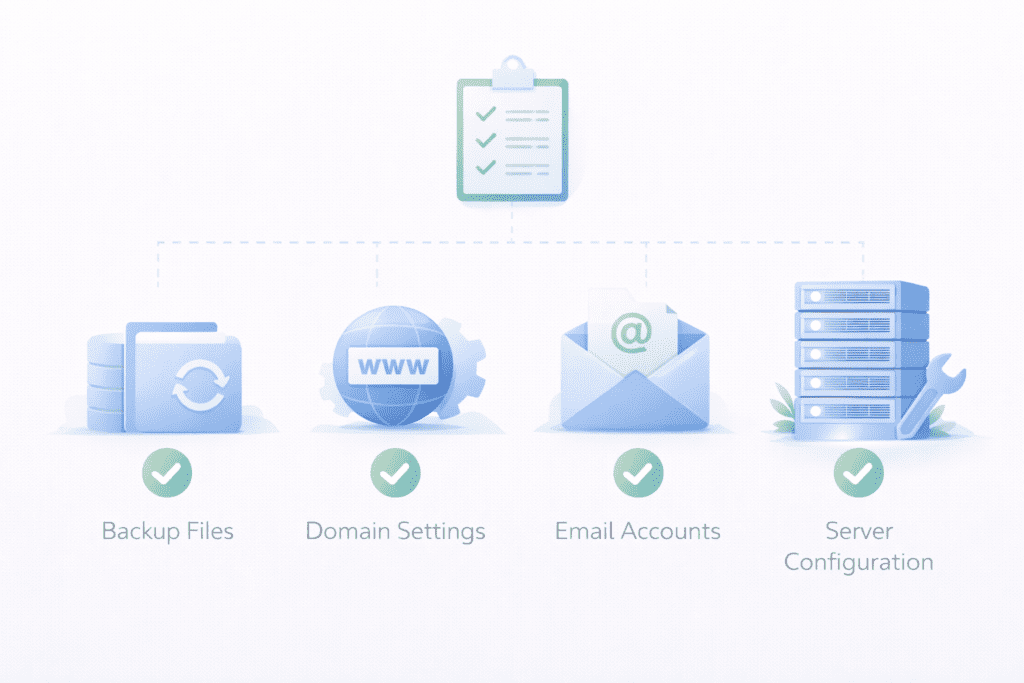
Preparation is the most important step before you cancel web hosting.
Once the host processes the cancellation, the server may suspend your hosting account. After a short period, your website files can be erased permanently.
That’s why you should prepare your data, verify domain control, and review services connected to your hosting plan.
Taking these steps protects your website, email services, and domain settings before you cancel your hosting.
Backup Your Website Files
Your website files live on the host’s server.
Before you cancel service, download all important files including themes, plugins, media uploads, and configuration files to ensure privacy. This ensures you can restore your site later if needed, maintaining your privacy throughout the process.
Most hosting providers allow file downloads through the control panel or through FTP access.
Saving these website files locally protects your data in case the hosting service deletes everything after cancellation.
If your site uses a database, export the database as well. Many WordPress websites rely on database storage for posts, comments, and settings, which is crucial for maintaining privacy.
Without that database backup, restoring your site later becomes difficult.
Backup Email Accounts
If your hosting account includes email services, you must save your email accounts before you cancel web hosting.
Messages stored on the host’s server may disappear when the hosting service is terminated.
Download important emails or configure an email client to store them locally. This step prevents losing conversations, invoices, or login credentials tied to your domain.
If the hosting provider offered webmail access, check whether your messages remain available after cancellation. In many cases, email services stop working once the hosting account is closed.
Backing up email data protects important communication records.
Save Your Domain Settings
Before you cancel your hosting account, confirm where your domain name is registered.
Sometimes the hosting provider also manages the domain. In other cases, the domain is controlled through a separate registrar, such as GoDaddy or Bluehost.
Log into your domain management dashboard and verify access.
Check DNS records and confirm you can still manage the domain after the hosting plan ends. If needed, transfer the domain to another registrar before you cancel your hosting.
Keeping control of the domain prevents downtime or loss of ownership.
Review Add-On Services and Linked Features
Many hosting plans include additional services.
Before cancellation, review any add-on features connected to the hosting account.
Examples include:
• SSL certificates – Security certificates installed on the server
• Email services – Domain-based email accounts
• Backup services – Automated backup subscriptions
• Add-on domains – Extra domains attached to the hosting plan
Some add-on services may renew automatically through billing settings.
If you want to cancel my web hosting completely, disable these services or confirm whether they continue after cancellation, including turning off the auto-renew.
Reviewing add-ons prevents unexpected billing charges and ensures you don’t accidentally delete something important.
How to Download a Full Website Backup from Your Hosting Provider
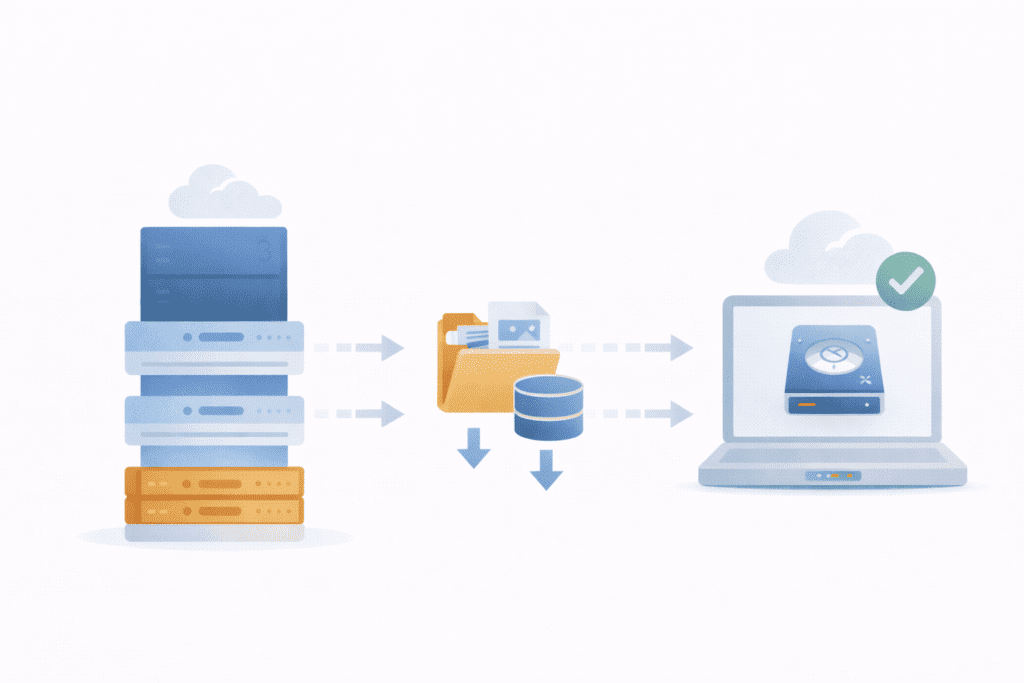
Creating a full backup protects your website before you cancel web hosting.
Most hosts provide backup tools through the control panel.
You can typically download a complete archive of your website files and databases directly from the hosting dashboard.
Another method is connecting to the server using FTP. This allows you to copy all website files to your local computer.
If your site uses a database, export it using phpMyAdmin. The exported file contains your website content, configuration data, and database structure.
After downloading everything, verify the backup files. Open the archive and confirm the database and website files are included.
Checking backup integrity ensures you can restore your website later if necessary.
Check Your Domain and Hosting Connection
Before you cancel my web hosting, confirm how your domain connects to the host through the portal’s renewal center.
A domain name and web hosting are separate services. The domain directs visitors to the server where your website files are stored.
If the domain is registered with the same host that provides your hosting service, cancelling incorrectly could affect both services.
Log into your hosting account dashboard and verify the domain settings. Look for DNS records or nameserver settings that connect the domain to the server.
Make sure the domain remains active even after you cancel your hosting plan. If the domain is managed by another registrar, you’ll still keep the domain after cancellation.
Confirming this connection prevents unexpected website downtime.
How to Transfer Your Domain Before Cancelling Hosting
If your host manages the domain, transferring it first can protect your ownership.
Start by unlocking the domain in the domain management dashboard. Most registrars require the domain to be unlocked before transfer.
Next, request the authorization code. This code allows you to transfer the domain to another registrar or hosting provider, which might be necessary when you decide to cancel my website.
Once you receive the code, begin the transfer process with your new provider. During this process, update the DNS or nameservers to point to the new server.
Completing the domain transfer before you cancel web hosting prevents domain interruptions and ensures your domain name stays under your control.
How to Migrate Your Website Before You Cancel Web Hosting

Migration is the safest option if your website will continue running elsewhere, especially when considering privacy concerns.
First, upload your website files and database to the new host. Configure the server environment so it matches your previous hosting setup.
Next, update the configuration files so your wordpress site connects to the new database.
Before you cancel web hosting, test the website on the new server. Confirm pages load correctly, links work, and the database responds properly.
Once everything works on the new host, update DNS settings to point the domain to the new server.
Migration ensures your website stays online while switching hosting services.
How to Cancel a Hosting Plan Step by Step
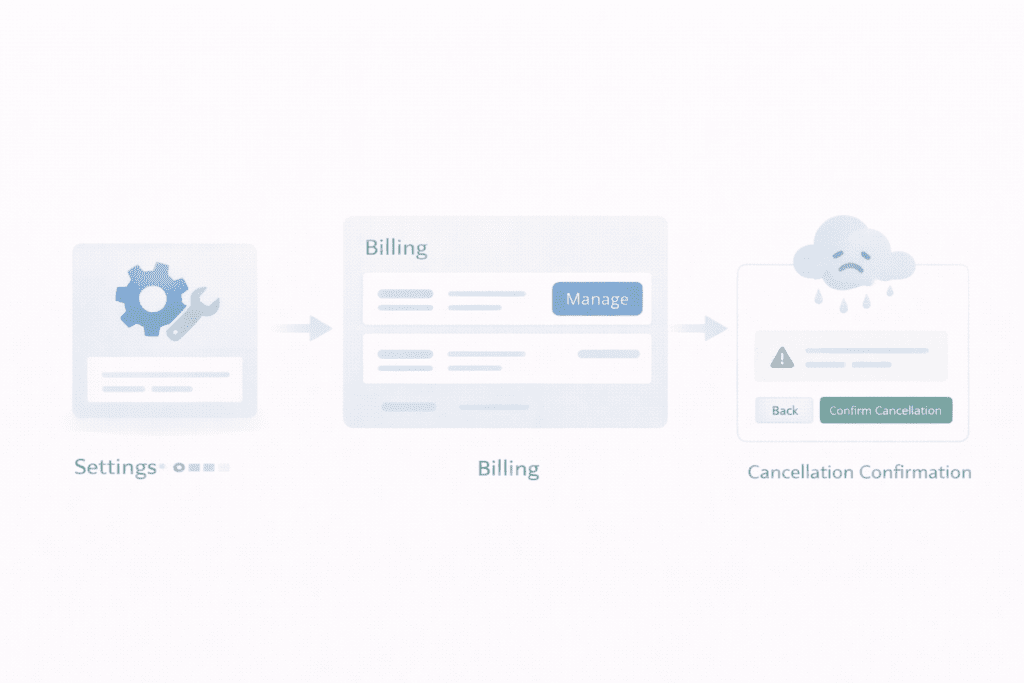
Once backups and migration are complete, you can safely cancel web hosting.
Step 1: Log Into Your Hosting Account
Open your hosting account dashboard.
Locate the active hosting plan associated with your website. Most hosts display this in the main dashboard or billing section.
Step 2: Locate Hosting Plan Management
Navigate to the hosting service settings.
Look for options related to billing, subscription management, or service configuration. This area usually contains the option to cancel your hosting plan.
Some hosts place cancellation tools in the billing portal or invoice management area.
Step 3: Request to Cancel Your Web Hosting
Submit the cancellation request.
You may see two options:
• Immediate cancellation – The hosting service stops right away
• End-of-term cancellation and how to cancel my web hosting effectively. The service continues until the billing cycle ends
Choosing end-of-term cancellation allows your website to remain active until the renewal date.
Step 4: Confirm the Cancellation
After submitting the request, the host may send a confirmation email.
Follow the verification link or respond to the confirmation message to complete the cancellation process.
Some hosting providers require confirmation through support chat or a ticket with customer support.
Once confirmed, your hosting account will be scheduled for termination.
Hosting Dashboard Differences: Why Cancellation Steps Vary
Every host uses a slightly different interface.
Some providers use traditional cPanel environments. Others rely on custom dashboards built into their hosting service.
Managed hosting platforms often require cancellation through a support ticket rather than a simple dashboard button.
If you cannot find the cancellation option, contact the support team using live chat or email.
Most hosting providers also document the cancellation process inside their knowledge base.
Understanding these differences helps you cancel web hosting without confusion.
Refund Policies When You Cancel Web Hosting
Some hosts offer refunds when you cancel web hosting, but the rules depend on timing.
Many providers include a money-back period for new customers. If you cancel during that window, you may receive a partial or full refund.
After that period, most billing charges become nonrefundable.
Before you cancel your hosting account, review the billing section or invoice history. Look at the terms of service to understand refund eligibility.
Also check the billing date and renewal date. If the hosting subscription recently renewed, you may still qualify for a refund depending on the hosting provider’s policy.
Understanding refund rules prevents billing surprises.
What Happens After You Cancel a Hosting Plan
After you cancel web hosting, the hosting service begins shutting down the hosting account.
Your website will eventually stop loading because the server no longer hosts your website files.
Email services connected to the domain may also stop working. Messages sent to those email accounts may bounce if the hosting account is terminated.
Most hosts keep server data for a short period before permanently deleting it.
That’s why backing up your website files and email accounts before cancellation is so important.
Your domain will remain active if it’s registered separately. You can still renew the domain name through the registrar even after the hosting service ends.
When You Should Cancel a Hosting Account
There are several situations where it makes sense to cancel web hosting.
• Migrating to another host – Moving your website to a new hosting provider
• Closing a website permanently – No longer running the project
• Downgrading services can also be an option if you wish to deactivate certain features. – Switching to a different hosting plan
• Changing hosting providers – Moving to a new hosting service with better performance
If your website is still active, migration is usually the safer option before cancellation.
Cancelling a hosting account without migration means the website will disappear from the server.
Cancel vs Migrate: Which Is Better?
Sometimes people cancel when they actually need migration.
Cancelling a hosting plan simply removes your website from the server. Migrating moves the website to a new host while keeping the site online.
If you want to continue running the website, migration is usually the better option.
Migration allows you to move website files, update DNS settings, and keep the domain connected to a new server.
Cancelling works best when the website will no longer exist.
Understanding the difference prevents downtime and data loss.
How to Confirm Your Website Is Safe Before Cancellation
Before you cancel web hosting, complete a final checklist.
• Test backup restoration – Confirm your backup works properly
• Verify domain control – Ensure you still control the domain registrar
• Check DNS settings – Confirm the domain points to the correct server before you deactivate any services.
• Review add-on services – Disable unnecessary services tied to the hosting account
Completing this checklist ensures your website remains safe even after cancellation.
Common Mistakes When People Cancel Web Hosting
Several common mistakes happen during cancellation.
• Not backing up website files – Losing content permanently
• Cancelling before transferring the domain – Risking domain downtime
• Forgetting email accounts – Losing email data stored on the server
• Ignoring add-on services – Unexpected billing charges
• Cancelling the wrong hosting plan – Accidentally terminating the wrong website
Carefully reviewing your hosting account dashboard helps prevent these problems.
What Most People Forget Before They Cancel Web Hosting
Some important details are easy to overlook.
Check whether the hosting subscription renews automatically. Many hosting providers enable auto-renew by default.
Review the billing cycle and upcoming invoice dates.
Also confirm that you still have access to your domain management panel. Losing access to the domain after cancellation can cause serious issues.
Small checks like these make the cancellation process safer.
Frequently Asked Questions About Cancel Web Hosting
How do I cancel web hosting safely?
Start by backing up your website files and databases. Confirm domain control, review add-on services, and then submit the cancellation request through your hosting account dashboard.
Can I cancel a hosting plan anytime?
Yes, it is important to consider privacy when managing your domain. Most hosting providers allow you to cancel at any time, though refunds depend on billing terms.
Will cancelling web hosting delete my website files?
Eventually, yes. After the cancellation process finishes, the host may erase server data permanently.
Can I keep my domain name after cancelling hosting?
Yes. If the domain is registered separately, you can keep the domain name and connect it to another host.
How long does it take to cancel your web hosting account?
The cancellation process can be immediate or scheduled for the end of the billing cycle depending on your selection.
What happens to email accounts after cancellation?
Email services usually stop working once the hosting account is terminated.
Can I reactivate a hosting account after cancellation?
Some hosts allow reactivation for a limited time before the server data is deleted.
Final Thoughts: How to Cancel Web Hosting the Right Way
To cancel web hosting safely, preparation is essential.
Always back up your website files, databases, and email accounts before requesting cancellation.
Confirm you still control your domain name and DNS settings so the domain remains active after the hosting service ends.
Review your billing cycle and disable auto-renew features to prevent unexpected charges.
If your website still matters, consider migrating instead of cancelling completely.
When done correctly, you can cancel web hosting without losing your data or disrupting your domain ownership, ensuring your privacy is protected.
This simple step reduces the risk of losing important data or unexpectedly renewing a hosting subscription.