If you’ve ever thought, “Bought a Domain, Now What?”, you’re not alone. Many US website owners start with one web hosting plan, only to realize later that their site needs more speed, better uptime, or stronger support.
This guide will show you exactly how hosting migration works and how to transfer a website to a new host without breaking anything.
Here’s what this guide will cover:
- What hosting migration really means
- When it’s the right time to migrate your website
- What to do before you start the migration process
- And how to move your website to a new web host safely
From my research, it’s common for website owners to change hosting providers after a year or two. Needs grow. Traffic grows. And sometimes the old host just isn’t good enough anymore.
For US site owners, choosing the right new hosting provider can mean:
- Faster load times
- Less website downtime
- Better customer support
- And a more reliable web hosting service
Let’s keep it simple and beginner-friendly.
What Is Hosting Migration?

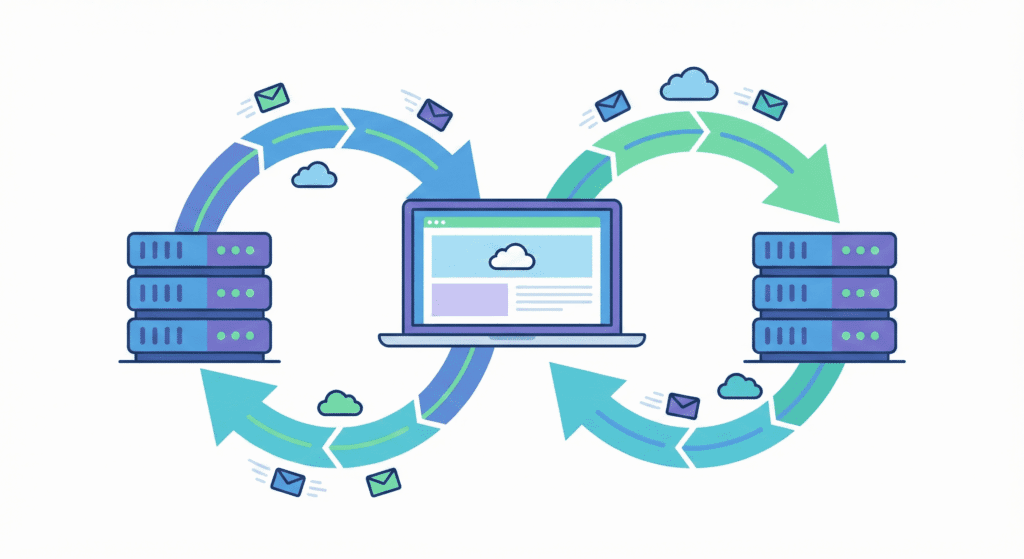
Hosting migration means moving your website from one web hosting provider to another.
In plain words, you:
- Copy your website files
- Move your database to a new database
- Set up a new hosting account
- And point your domain name to the new server
Your website stays the same for visitors.
Only the place where it’s hosted changes.
This process is also called:
- site migration
- website migration
- or moving a website from one host to another
So if you’re moving a wordpress website or any other site to a new web host, you’re doing a hosting migration.
Here’s the thing:
It sounds technical, but in most cases, the migration process is just about following steps carefully.
Many hosting companies even offer a free migration or migration service to help beginners.
When Should You Migrate to a New Host?

Not every site needs to move. But there are clear signs when it may be time to transfer your website.
Performance issues
If your wordpress site feels slow or struggles during traffic spikes, your current hosting plan may not be powerful enough. A better new server can fix that.
Uptime problems
If your site goes offline often, that’s a big warning. Website downtime hurts trust and user experience in the US.
Poor support
If your hosting provider takes forever to reply or doesn’t solve problems, it becomes frustrating. Good support matters, especially during issues.
Better pricing or features
Sometimes a new hosting provider offers:
- Better uptime
- More storage
- A stronger web hosting plan
- Or better value for the same price
From my research, many website owners migrate simply because they find a better deal while shopping for a new host.
Personally, I feel support quality is often the main reason people leave an old host.
By now, you know:
✔ What hosting migration is
✔ Why US website owners migrate
✔ And when it’s time to move your website
What to Do Before You Start a Hosting Migration
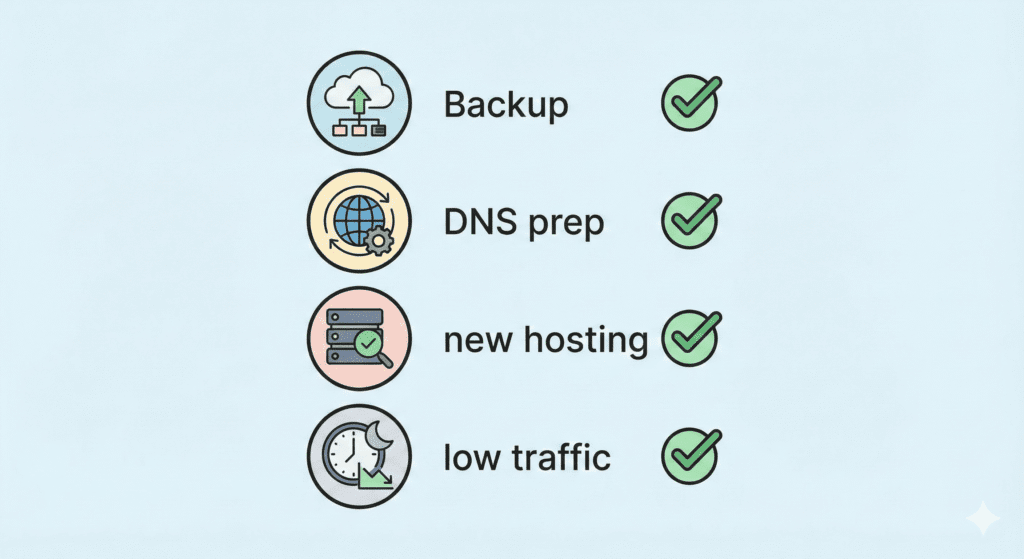
Before you move your website to a new host, don’t rush. A little prep makes the whole migration process much smoother.
1. Take a full website backup

This is the most important step.
Create a website backup of:
- Your website files
- Your database
Back up your site using:
- Your current hosting provider tools
- A migration plugin
- Or manual file transfer
Backing up your website means you always have a copy of your website in case something breaks.
Here’s what I noticed:
Most migration problems become small issues if you already have a backup.
2. Check new host requirements
Every new web host has limits:
- PHP version
- Disk space
- Database size
- WordPress support
Make sure your new hosting provider can handle your wordpress website or custom site before you start.
3. Lower DNS TTL
At your domain registrar, lower the TTL in your domain name system settings.
This helps your domain update faster when you point to the new server.
You don’t need to understand every detail. Just follow your host’s guide.
4. Pick a low-traffic time
Choose a time when fewer US visitors are on your site:
- Late night
- Or early morning
This reduces the risk of website downtime during the site migration.
Main Methods to Transfer a Website
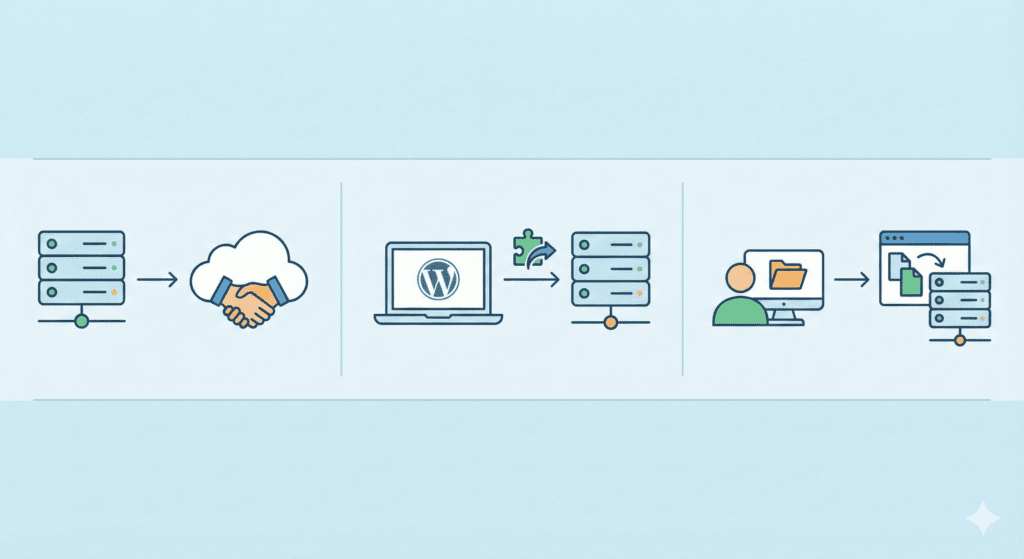
There are three main ways to transfer your website from one host to another.
Let’s look at them.
Using Your New Host’s Free Migration Service
Many hosting companies offer free migration when you sign up for a new hosting account.
A migration service usually includes:
- Copying your website files and database
- Setting up your new database
- Testing your new site on the new server
This is often the easiest way to migrate your website.
Best when:
- You’re a beginner
- You’re moving a wordpress site
- You want a smooth web hosting migration
From my research, this is the most common option for US website owners.
Using a Plugin or Migration Tool
If you run a wordpress site, using a migration plugin is popular.
A plugin:
- Creates a copy of your website
- Packs your website files and database
- Lets you upload it to your new hosting account
Pros:
- Fast and beginner-friendly
- Great for wordpress migration
Limits:
- File size limits on cheap plans
- Some tools require paid versions
Using a migration plugin works well for small to medium sites.
Manual Migration (Files and Database)
Manual means you do everything yourself.
You will:
- Download website files to your computer
- Export the database
- Upload files to the new server
- Create a new database
- Update config files
This uses:
- File Transfer Protocol
- An FTP tool (use an ftp client)
Manual makes sense when:
- Plugins fail
- Your site is custom
- You want full control
Honestly, for beginners, this can feel heavy. It works, but it’s easy to miss a step.
By now, you’ve:
✔ Backed up your website
✔ Prepared your domain and hosting account
✔ Chosen how to migrate your website
✔ Picked between free migration, plugin, or manual transfer
Step-by-Step: How to Transfer Your Website to a New Host
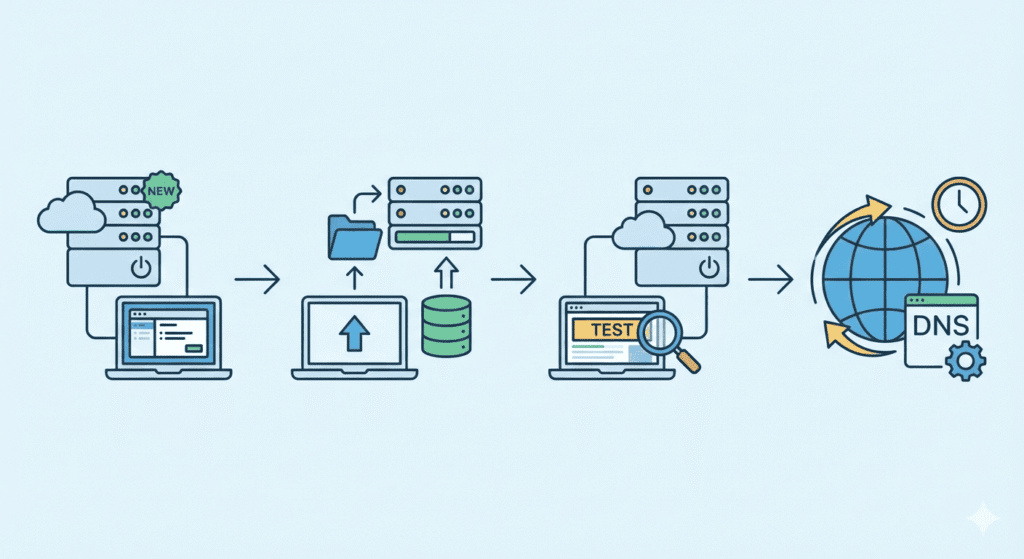
Now let’s walk through the core migration process. No matter which method you chose – free migration, plugin, or manual – these steps stay mostly the same.
Let’s keep it simple.
1. Set up your new hosting account
First:
- Sign up with your new hosting provider
- Choose a suitable hosting plan
- Log in and explore your new control panel
Your new web host is now ready, but empty.
This is where your website to a new home will live.
2. Upload website files and databases
Now it’s time to move your data.
Depending on your method:
- Migration service → the host handles everything
- Migration plugin → upload the package file
- Manual transfer → upload files using file transfer protocol and import the database
Make sure:
- All website files are uploaded
- You create a new database
- The database to the new server is imported correctly
For WordPress, this means your wordpress website now exists on the new server.
3. Update configuration files
Your site must connect to the new database.
For a wordpress site, edit:
- wp-config file
Update:
- Database name
- Username
- Password
So your site connects to the new database on the new web host.
4. Test on a temporary URL
Before touching DNS, test everything.
Most hosting companies give:
- A temporary URL
- Or let you preview using the hosts file
Check:
- Pages load
- Images show
- Login works
- No errors
Here’s the thing:
This usually works, but not always. Testing saves headaches.
5. Get ready to change DNS
Once your site looks good on the new server, you’re ready to point your domain name to the new host.
We’ll do that next.
How to Point Your Domain to the New Host
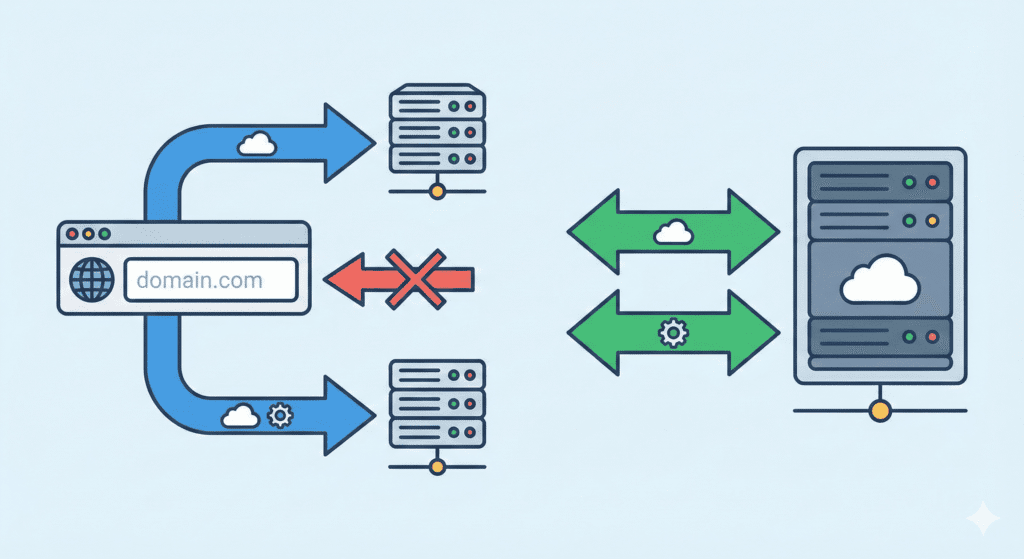
After the transfer, you must connect your domain to the new web host.
Nameservers vs DNS records
Most beginners use nameservers.
Your new web host will give you:
- new web host’s nameservers (like ns1.newhost.com, ns2.newhost.com)
Steps:
- Log in to your domain registrar
- Find DNS or nameserver settings
- Replace old values with the new host’s nameservers
- Save
This tells the domain name system to send visitors to the new server.
That’s how you point to the new host.
What US beginners should expect
After the change:
- Some users see the new site in minutes
- Others may still see the old host for a few hours
- In rare cases, up to 24–48 hours
This is normal.
How Long Does Hosting Migration Take?
This depends on site size and DNS.
File transfer time
- Small sites: a few minutes
- Larger wordpress websites: 1–2 hours or more
DNS propagation in the US
Usually:
- A few hours
- Sometimes up to a day
Typical timeline
For most US website owners:
- Transfer + setup: 1–3 hours
- Testing: 30 minutes
- DNS update: same day
So a smooth web hosting migration often finishes within 24 hours.
There are exceptions, but that’s the usual case.
How to Avoid Downtime During Migration

Downtime scares everyone. Here’s how to reduce it.
Keep old host active
Don’t cancel your old hosting account yet.
Keep the old host running until DNS is fully done.
Test before switching DNS
Never point your domain before testing the new site.
Monitor after the move
After DNS:
- Refresh your site
- Check from phone and desktop
- Ask someone else to test
From my research, most issues show up quickly if they exist.
By now, you’ve:
✔ Set up a new hosting account
✔ Moved website files and database
✔ Tested your site on the new server
✔ Pointed your domain name to the new host
✔ Avoided downtime during the move
What to Check After Migrating Your Website
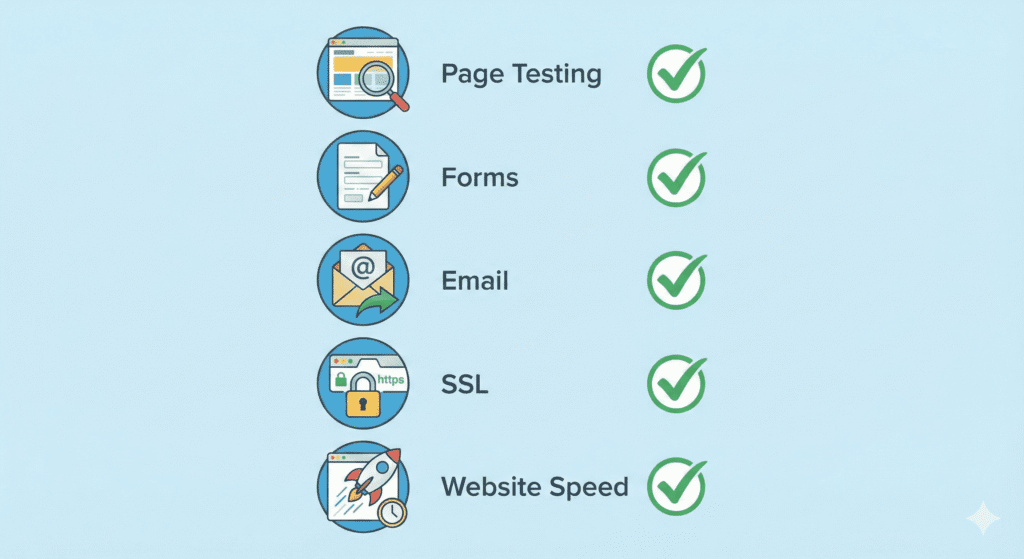
Once your domain name is fully pointing to the new host, don’t stop there. You should carefully review everything on your new site.
Pages and links
Open several pages and click around:
- Homepage
- Blog posts
- Menus and buttons
Make sure nothing is broken after the site migration.
Forms and emails
Test:
- Contact forms
- Signup forms
- Any email tied to your domain
Some email settings don’t move automatically when you migrate.
Speed and errors
Check how fast your site loads on the new server.
A better hosting plan should mean better speed and fewer errors.
SSL setup
Make sure HTTPS works.
Enable SSL in your new hosting account so your site stays secure.
Here’s what I noticed:
Most issues show up in the first hour after DNS finishes. Catch them early.
Common Hosting Migration Mistakes Beginners Make
Even a smooth migration process can go wrong if you rush.
No backup before moving
Skipping a website backup is risky.
Always back up your website before you transfer.
Switching DNS too early
If you point to the new server before testing, visitors may see a broken site.
Not testing first
Always preview your wordpress website on the new web host before DNS.
Cancelling the old host too soon
Don’t cancel your old hosting account until:
- DNS is done
- You’ve tested everything
- And traffic is reaching the new provider
This mistake causes most panic.
Is Hosting Migration Hard for Beginners?
In most cases, no.
Many hosting companies offer:
- Free migration
- Step-by-step guides
- Live support
If you use a migration plugin or a migration service, you can often migrate your website without touching code.
That said…
If your site is large or custom, it may take more time.
My honest take?
Migration can feel scary, but with modern tools, it’s more about patience than skill.
FAQs – Hosting Migration
Will migration affect SEO?
If done right, no. Your URLs stay the same, downtime is low, and search engines usually won’t notice.
Can I migrate email too?
Yes. Many new hosting providers help move email accounts, but you may need to recreate them in your new hosting account.
What if something breaks?
That’s why you kept a copy of your website.
Restore from your website backup or ask your new provider’s support.
Can I move back?
Yes. If needed, you can point your domain back to the old host, as long as the old web hosting account is still active.
How do I transfer website hosting from one host to another?
To transfer website hosting from one host to another, back up your website files and database on the old hosting account, create a copy of your website files on your local machine or the new hosting, upload files to the new hosting account, import the database and point the new hosting to the correct database credentials. Update DNS records to point to the website’s new hosting account and test the new site before cancelling the old hosting plan. This process of transferring your website commonly involves backing up your website, adjusting configuration to point to the new database, and ensuring the website has a DNS record that resolves to the new host.
What steps are required to move a WordPress website to a new web host?
Moving a WordPress website to a new web host requires exporting a copy of your website files and the WordPress database, creating a new database on the new hosting provider, importing the SQL file and updating wp-config.php to point to the new database, and then migrating DNS to the new host. You can perform a web hosting migration manually transferring your website or use a best WordPress migration plugin to simplify the process, but you still need to connect to your hosting account and verify the new site to make sure links and media load correctly.
Can I move a website to a new domain when changing web hosting?
Yes, you can move a website to a new domain when changing web hosting. The workflow includes copying your website files to the new hosting account, creating or updating the new domain name in the hosting control panel, updating site configuration (for example WordPress settings or rewriting rules) to reflect the new domain, and setting up redirects from the old domain to the new domain. During this process it’s important to ensure your old domain remains active long enough to avoid SEO loss and that you update any internal links or references to the new domain.
Do I need to back up my website before switching to a new hosting provider?
Yes – backing up your website is essential before switching to a new hosting provider. Create a full backup that includes a copy of your website files and an export of your database. This backup protects you against data loss if something goes wrong during the migration and allows you to restore the site on the new hosting service or revert to the old hosting account if necessary.
How long does it take to transfer a website from one host to another and update DNS?
The actual file and database transfer can take from minutes to several hours depending on site size and connection speed. DNS propagation after you update records to point to the new hosting provider typically takes up to 24–48 hours to fully propagate worldwide, though many users will see changes within a few hours. To minimize downtime, prepare the new site in the new hosting account and test it using a hosts file or temporary URL before changing DNS.
Choosing between shared hosting and other types of hosting depends on your website’s needs. Shared hosting is cost-effective for small sites but may lack performance and advanced features. Consider types of hosting plans like VPS, managed WordPress hosting, or dedicated servers if you need more resources, security, or scalability. Look for a hosting plan with a new web host that matches traffic, storage, and technical requirements and know about hosting migration options offered by web hosting companies.
Can I transfer your website manually or should I use a migration plugin or hosting service?
You can transfer your website manually by downloading a copy of your website files, exporting and importing the database, then updating configuration files and DNS. Alternatively, many web hosting providers offer migration services or you can use the best WordPress migration plugin to automate most steps. Manual transferring your website gives you full control and helps you understand the process, but plugins or provider services can save time and reduce risk for complex sites.
What do I need to check after moving a WordPress site to a new hosting provider?
After moving a WordPress site to a new hosting provider, verify that the site loads correctly, internal links and media function, and the new site points to the new database. Check SSL configuration, update DNS, and confirm emails and cron jobs work on the website hosting environment. Also search for hard-coded references to the old domain or hosting path and update them so the new site behaves as expected.
How do I safely move a website to another host without downtime?
To move a website to another host with minimal downtime, set up the full site on the new hosting provider first, test it using a temporary URL or by editing your local hosts file to point the domain to the new server IP, then update DNS at a low-traffic time. Reduce TTL on the existing DNS records a day in advance to speed propagation, and keep the old hosting account active until you confirm the new site is functioning. This approach ensures a smooth web hosting migration and reduces visitor disruption.
What Should You Do Next After a Successful Migration?
Once your site is stable:
Monitor uptime and speed
For the first few days:
- Check your site daily
- Watch for website downtime
- Test speed from US locations
Update backups
Set up automatic backups in your new hosting plan so you’re protected going forward.
Review your new hosting plan
Make sure your web hosting plan meets your needs:
- Enough storage
- Good performance
- Reliable support
If not, consider upgrading early.
Final Thoughts
Bottom line?
Hosting migration doesn’t have to be complicated.
If your current web hosting is slow, unreliable, or overpriced, moving your website to a new web host can be one of the best decisions you make for your online presence.
For US website owners:
- Take a full website backup
- Use free migration or a migration plugin if possible
- Test before switching DNS
- Keep your old host active until everything works
Most people who follow these steps move their website without any hiccups.
So if you’re thinking about migrating your website from one host to another, don’t overthink it.
Start the process.
Take it step by step.
And soon, your site will be running stronger on a better host.