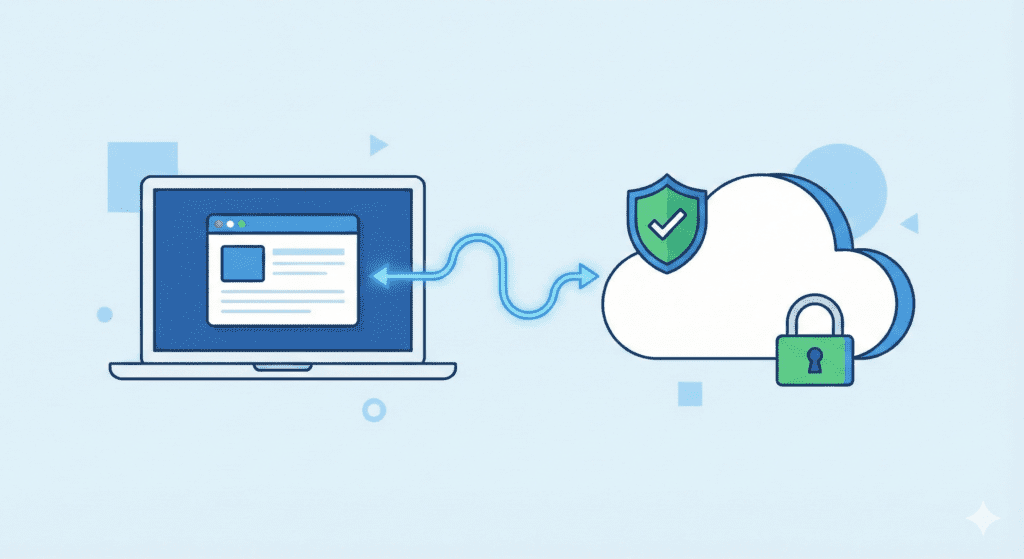
Let’s keep it simple. If you run a website in the US and don’t have Website Backups, you’re taking a big risk.
Here’s what I noticed from my research:
Most site owners only think about backups after something goes wrong.
This guide will show you:
- What a website backup really is
- How backup works in web hosting
- Why backups are essential for US websites and businesses
- How to back up your website the right way
- Best practices you can actually follow
Whether you run a small blog, a WordPress site, or a business website, data loss can happen. A bad update. A hack. Even one wrong click.
And suddenly, your entire website is gone.
For US website owners, this can mean:
- Lost sales
- Broken trust
- SEO damage
- Hours or days of rebuild work
Let’s be real for a second. Rebuilding a website from scratch is painful. That’s why backups are essential.
Personally, I feel Website Backups are not just a tech thing. They’re basic insurance for your online work.
What Is a Website Backup?
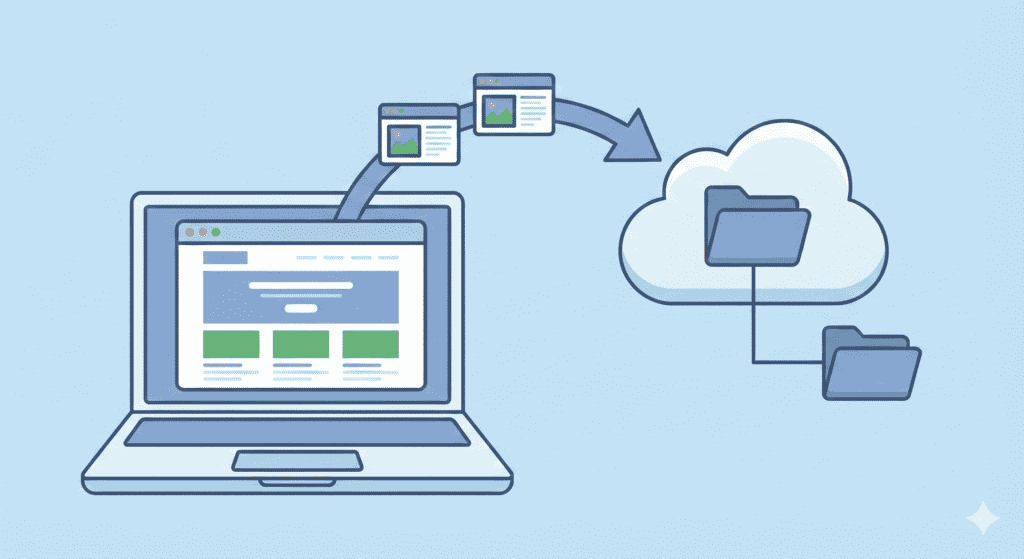
A website backup is simply a saved copy of your entire website.
In plain words, it’s a way to make sure you always have your site stored somewhere safe.
A proper website backup is a copy of:
- Your website files (themes, images, uploads)
- Your database (posts, pages, user data)
- Important settings and configs
So if something breaks, you can restore your website to its previous state.
Think of it like this:
A backup is like taking a snapshot of your site when everything works.
If your site crashes later, you go back to that snapshot.
That’s it.
A solid website backup solution lets you:
- Recover from hacks
- Fix mistakes
- Undo bad updates
- Prevent permanent data loss
Most web hosting providers now offer backup options, but not all backups are equal. Some are limited. Some are manual. Some cost extra.
We’ll get into that soon.
What Data Does a Backup Include?
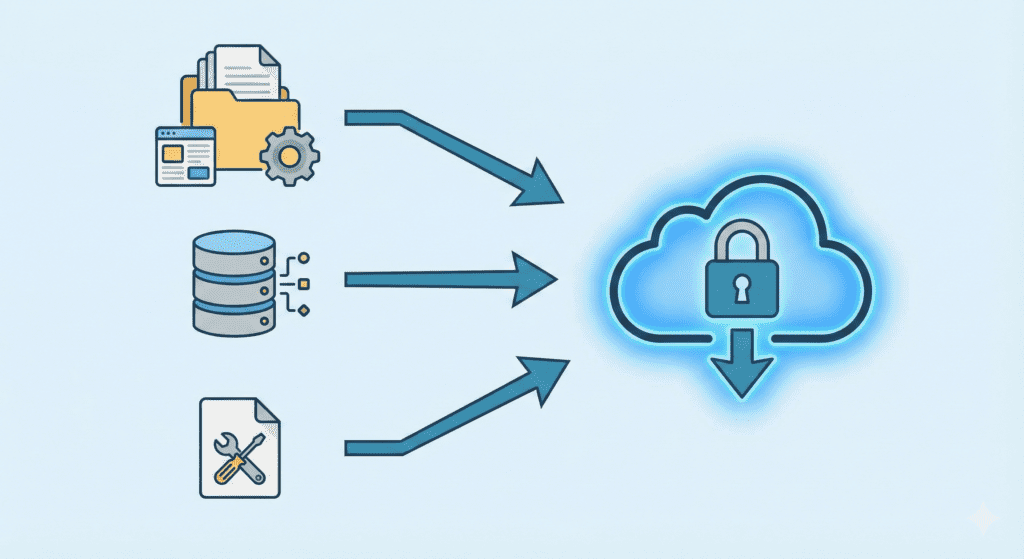
A full backup usually includes:
- Website files – all your folders and uploads
- Database – where WordPress stores posts and settings
- Config files – like wp-config.php
- Sometimes emails, if your hosting plan includes them
Without both files and database, your backup may be incomplete.
Here’s the thing: many beginners forget the database. Then their site won’t restore properly.
Backups are vital only if they include everything.
Why Backing Up Your Website Is Important
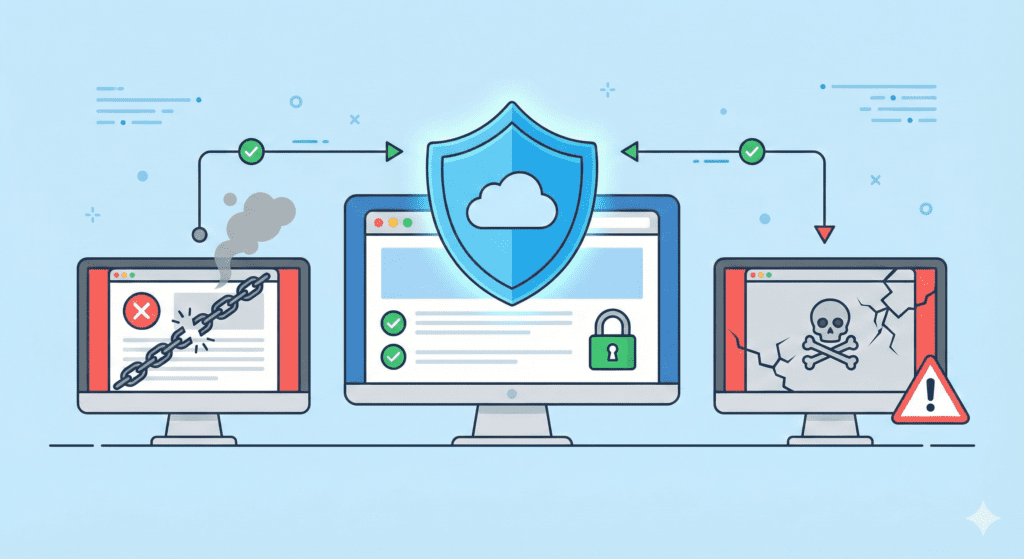
If you’ve ever lost a file on your computer, you know how frustrating that feels. Now imagine losing your entire website.
That’s exactly what can happen without a website backup.
From my research, most data loss cases come from simple things:
- A wrong update
- A plugin conflict
- A hack
- Or human error
And yes, it happens even to small sites.
Protection from data loss
Data loss doesn’t always mean hackers. It can be:
- Accidental deletes
- Server issues
- Failed updates
A website backup gives you a copy of your data so you can restore your site when something breaks.
Backups prevent data loss from becoming permanent loss.
Security incidents and hacks
No site is 100% safe. Even with good security, hacks happen.
If your WordPress site gets infected, a recent backup lets you:
- Clean your site
- Restore your website to a safe point
- Get back online faster
Without a backup, recovery becomes slow and stressful.
Let’s be real – rebuilding a hacked site from scratch is something nobody wants.
Human errors and updates gone wrong
Here’s what I noticed:
Many site crashes come from updates.
You update WordPress, a theme, or a plugin… and suddenly the site is broken.
With a full backup, you can roll back in minutes.
That’s why backing up your site before updates is a best practice.
How Often Should You Back Up a Website?
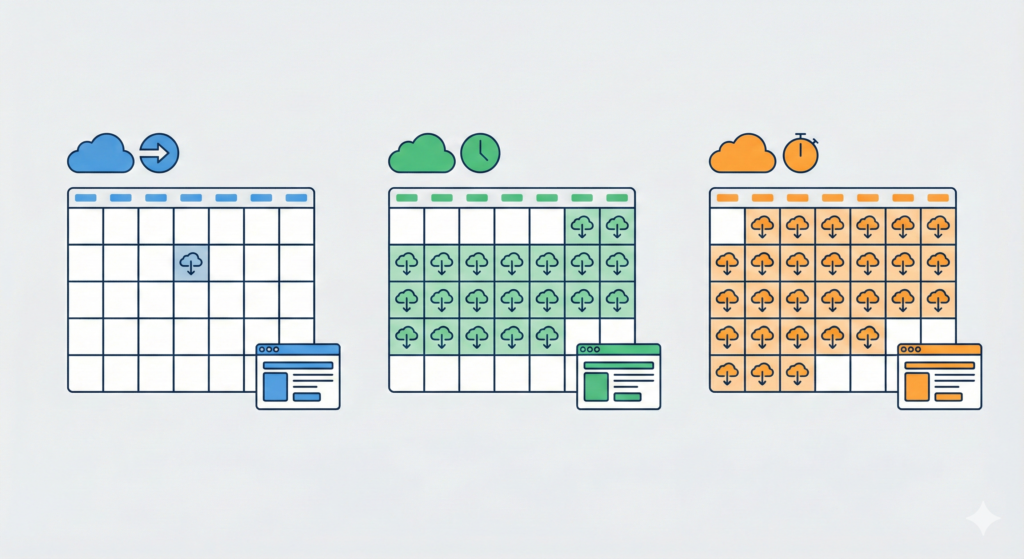
This is where beginners get confused. There’s no one rule for everyone.
Your backup schedule depends on:
- How often your site changes
- How important your data is
- How much risk you can accept
Let’s keep it simple.
For small or personal websites
If your site changes once in a while:
- A weekly backup is usually enough.
This works for blogs or sites with occasional updates.
For active blogs and business sites
If you post often or update content:
- Daily backups are a safer choice.
Many US businesses use daily backups to protect fresh content.
For ecommerce or membership sites
If you run an ecommerce store or collect user data:
- You may want backups every day, or even more often.
Orders and customer data change fast. Losing even one day hurts.
After big changes
No matter your regular schedule, always back up your website:
- Before updates
- Before redesigns
- Before major changes
That’s just smart.
Common Backup Schedules for US Websites
From my research, most US website owners follow one of these:
- Weekly backup → small blogs, portfolios
- Daily backups → business sites, active blogs
- Before updates → everyone
Some advanced backup systems even offer incremental backups, which only save what changed since the last backup. That helps save storage.
But even basic backups work, as long as they’re regular.
Here’s the thing:
A backup you don’t have when you need it is useless.
So pick a frequency you’ll actually follow.
Why Regular Backups Are Non-Negotiable
Let’s keep it real.
Websites break.
Servers fail.
People make mistakes.
Backups are essential because they give you a safety net.
In most cases, you won’t need them.
But when you do, you’ll be glad they exist.
Main Methods to Back Up a Website

There isn’t just one way to back up a website. Most US website owners use one (or a mix) of these methods:
- Hosting provider backups
- Manual backups
- Plugin or software backups
- Cloud or offsite backups
Each has pros and limits. Let’s break them down in plain language.
Hosting Provider Backups
Many web hosting providers include backups as part of their hosting plan.
These are usually:
- Automatic backups run by the host
- Stored on the hosting server or nearby storage
- Easy to restore from the control panel
Why people like them:
They’re simple. You don’t have to set anything up.
Pros:
- No extra tools needed
- Often automated
- Easy restore options
Limits:
- Not always daily backups
- Sometimes cost extra
- Often stored on the same server
- Limited number of copies
Here’s the thing. Hosting backups are helpful, but they shouldn’t be your only backup solution.
If the hosting server fails, your backups may be affected too.
In most cases, hosting backups are good as a first layer, not the only one.
Manual Backups
A manual backup means you download your site yourself.
This usually includes:
- Website files via file manager or FTP
- Database export using tools like phpMyAdmin
When manual backups help:
- Before big updates
- Before redesigns
- If you want a local copy on your computer
Pros:
- Full control
- No extra cost
- You know exactly what’s saved
Limits:
- Takes time
- Easy to forget
- Easy to mess up
- Not practical for regular backups
Let’s be real – manual backups are fine once in a while, but not for everyday safety.
Still, knowing how to do one is useful.
Plugin or Software Backups
If you use WordPress, this is one of the most popular options.
A backup plugin can:
- Create automatic backups
- Save both files and database
- Let you download backup files
- Connect to cloud storage
Popular tools do this in a few clicks.
Why plugins are popular:
- Easy for beginners
- Set-and-forget automation
- More control than host backups
Pros:
- Automated backup schedule
- Simple restore process
- Works even if you change hosts
Limits:
- May use server resources
- Some features cost money
- Still rely on your hosting server unless offsite is used
From my research, plugin backups are one of the best options for WordPress sites.
Cloud or Offsite Backups
Offsite backups mean your backups are stored somewhere other than your hosting server.
This could be:
- Cloud storage
- Backup services
- Remote servers
Why offsite matters:
If your server crashes or gets hacked, offsite backups stay safe.
Pros:
- Extra protection
- Safe from server failures
- Good for disasters
Limits:
- May cost extra
- Needs setup
- Depends on internet access
Many backup solutions now combine plugins with cloud storage. That gives you both automation and offsite safety.
Personally, I feel offsite backups are worth it for any serious site.
Which Method Is Best?
Is one method the best? Honestly, it depends.
In most cases:
- Hosting backups → good basic safety
- Plugin backups → great control
- Offsite backups → extra protection
The safest setup is a mix.
For example:
Hosting automatic backups + plugin offsite backups.
That way, you’re covered even if one fails.
What Should Be Included in a Full Backup?
A backup is only useful if it actually contains everything your site needs.
A full backup should include:
Website files
These are all the files that make your site look and work the way it does:
- Themes and plugins
- Images and uploads
- Core files
Without these website files, your site won’t display correctly.
Database
Your database stores:
- Posts and pages
- User accounts
- Settings and comments
For WordPress and most CMS sites, the database is the heart of your site.
Many beginners forget this part. Then their restore fails.
Config files and emails
Config files tell your site how to connect to the database.
If your hosting plan includes email, backing up email data can matter too.
Together, these make up your entire website.
If you only back up files or only the database, that’s a partial backup. It may help, but it’s not ideal.
From my research, most restore problems come from incomplete backups.
How to Back Up a Website Step by Step
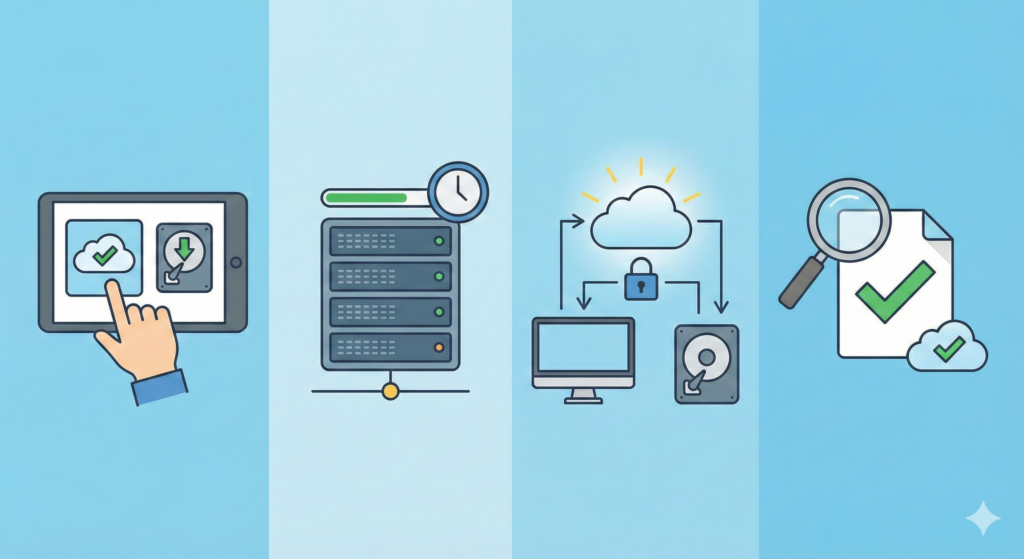
Let’s keep this simple. The exact steps depend on your tools, but the backup process usually looks like this.
Step 1: Choose your backup method
Decide if you’ll use:
- Hosting provider backups
- A backup plugin
- Manual backup
- Or a mix
Most beginners start with a plugin or host backups.
Step 2: Log in to your hosting or admin panel
You’ll need access to:
- Your web hosting dashboard
- Or your WordPress admin area
This is where backup options usually live.
Step 3: Select full backup
Always choose a full backup if possible. That includes files and database.
Some tools let you choose backup options like:
- Files only
- Database only
- Full site
Pick full backup for safety.
Step 4: Run the backup
Click start and wait.
For small sites, it may take a few minutes. Larger sites take longer.
During this time, don’t close the process if possible.
Step 5: Download or store your backup
Once complete:
- Download the backup files to your computer
- Or store your backups in cloud/offsite storage
Never rely only on copies stored on the hosting server.
Step 6: Verify your backup
This step is often skipped.
Check that:
- The backup file exists
- It’s not empty
- The size looks reasonable
Some tools let you test restore to verify your backups. That’s even better.
What Beginners Should Expect
Here’s what I noticed from helping beginners:
- First backup feels confusing
- After that, it’s easy
- Automation saves time
- Manual checks still matter
Most backup tools are beginner-friendly now. You don’t need to be a tech expert.
In most cases, setting up automatic backups once is enough, as long as you check them now and then.
Why This Process Matters
A backup is only useful if:
- It runs regularly
- It includes everything
- You know where it’s stored
- You can restore your website from it
Otherwise, it’s just a file you hope will work.
Let’s be real – hope isn’t a strategy.
Best Practices for Website Backups in 2026
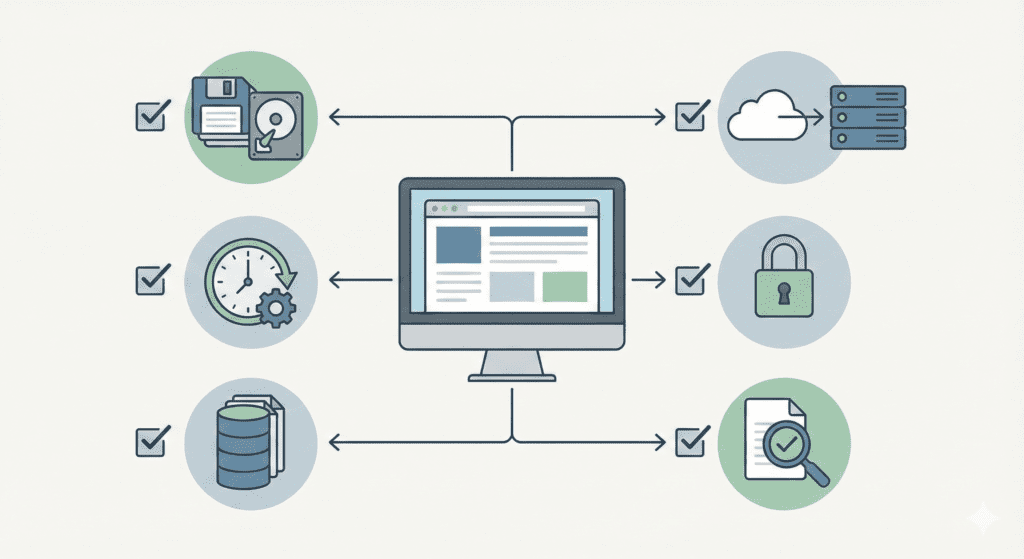
Backing up your site once is good. Doing it the right way, every time, is better.
Here are the best practices most US website owners should follow in 2026.
Keep multiple copies
Don’t rely on just one backup.
A simple rule:
- Keep at least two or three copies
- From different dates
If one backup is corrupt, you still have another.
This usually works, but not always, which is why multiple copies matter.
Use offsite storage
If all backups live on your hosting server, you’re at risk.
If the server crashes or gets hacked, your backups may go too.
That’s why offsite backups are important.
From my research, storing backups in cloud storage is one of the safest options.
Automate regular backups
Manual backups are easy to forget.
Set up:
- Daily backups for active sites
- Weekly backups for small sites
An automated backup system saves time and avoids human error.
Still, check them now and then.
Test your restores
This is the part most people skip.
At least once in a while:
- Try restoring your site on a test area
- Or check that the restore process works
Verifying your backups gives confidence they’ll work when needed.
Secure your backups
Your backups contain:
- Website files
- Database data
- Possibly user info
Protect them with:
- Strong passwords
- Secure storage
- Limited access
A leaked backup can be as bad as a hacked site.
Back up before changes
Anytime you:
- Update WordPress
- Change themes
- Install plugins
- Redesign your site
Run a manual backup first.
That’s just smart insurance.
Where to Store Website Backups Safely
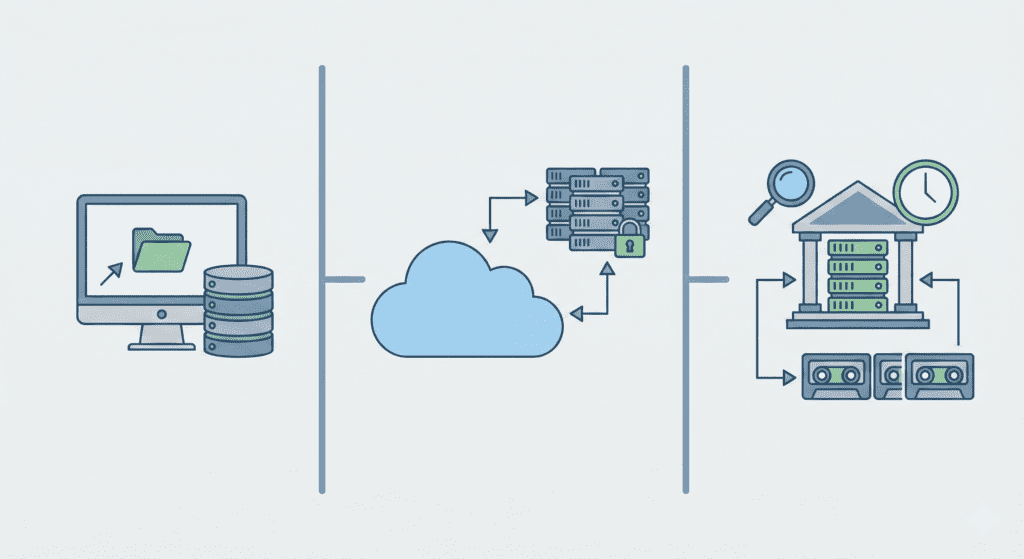
Now let’s talk about storage. Where you keep backups matters a lot.
Here are the main options.
Local storage
This means:
- Your computer
- External hard drives
- USB drives
Pros:
- Full control
- No monthly cost
- Easy to access
Cons:
- Can be lost or damaged
- Not always updated
- Depends on your habits
Local storage is okay for extra copies, but not ideal alone.
Cloud storage
This is one of the most common choices today.
Backups are stored in:
- Cloud accounts
- Online drives
- Remote storage
Pros:
- Offsite safety
- Easy access anywhere
- Works with automated backups
Cons:
- May cost money
- Needs setup
- Depends on internet access
From my research, cloud storage is the best balance for most US website owners.
Backup services
Some backup services handle everything:
- Create backups
- Store them offsite
- Help restore your website
Pros:
- All-in-one backup solution
- Simple for beginners
- Support included
Cons:
- Monthly cost
- Less control sometimes
These are great if you don’t want to manage backups yourself.
How Many Backups Should You Keep?
Here’s a simple approach:
- Keep recent backups (last few days)
- Keep one weekly backup
- Keep one monthly backup
That gives you multiple restore points.
Size of your website also matters. Bigger sites need more storage.
In most cases, you don’t need dozens of old backups. Just enough to be safe.
Putting It Together
A solid setup looks like:
- Automated daily or weekly backups
- Stored offsite
- Plus an extra local copy sometimes
This gives you peace of mind.
Personally, I feel backups are like seatbelts. You don’t think about them until you really need them.
How to Restore a Website From a Backup
Having a backup is great. Knowing how to restore your site is what really matters.
The exact steps depend on your backup solution, but the basic restore process usually looks like this:
Step 1: Access your backup tool
Log in to your:
- Hosting control panel
- Backup plugin dashboard
- Or backup service account
Find the list of available backups.
Step 2: Choose a recent backup
Pick the most recent backup from before the problem happened.
This is why having a recent backup matters.
Step 3: Start the restore process
Click restore and confirm.
Most tools will:
- Replace website files
- Restore the database
- Reset configs
Step 4: Wait for completion
For small sites, this may take a few minutes. Bigger sites take longer.
Don’t interrupt it if possible.
Step 5: Check your site
After restore:
- Visit your site
- Test key pages
- Log in to admin
- Check forms and links
If something looks off, try another backup.
In most cases, restore your website from a backup brings it back exactly as it was.
Common Backup Mistakes Beginners Make
Let’s be real. Most backup failures come from simple mistakes.
Relying on one backup only
If that backup is broken, you’re stuck.
Always keep multiple copies.
Not testing restores
Many people back up but never test.
Then, during a crisis, they find out the backup doesn’t work.
Forgetting the database
Files alone aren’t enough. Your database is critical.
Storing backups on the same server
If the hosting server goes down, your backups may too.
That defeats the point.
Assuming the host handles everything
Some hosting backups are limited or cost extra.
Never assume. Always check.
Is Website Backup Hard for Beginners?
Short answer? No.
Most US web hosting providers now offer:
- Simple backup tools
- Automatic backups
- One-click restores
Backup plugins for WordPress make it even easier.
Here’s what I noticed:
The first setup feels confusing. After that, it’s almost hands-off.
You don’t need to be a developer. Just follow guides and take it step by step.
FAQs – Website Backups
How long do backups take?
Small sites: a few minutes.
Large sites: longer. It depends on size and server speed.
Do backups affect site speed?
During backup runs, there may be a small impact, but most tools manage this well.
Are backups included with hosting?
Sometimes. Many hosting plans include basic backups, but advanced options may cost extra.
How much storage do backups need?
About the size of your website times the number of copies you keep. Bigger sites need more space.
What Should You Do Next After Setting Up Backups?
Once backups are running:
Enable automation
Set daily or weekly backups based on your site.
Monitor backup success
Check logs or email reports to ensure backups complete.
Review security settings
Protect access to backups with strong passwords.
Update when your site grows
As your site gets bigger, review your backup schedule and storage.
Backups are not a “set once and forget forever” thing. They grow with your site.
Final Thoughts
So, what’s the big takeaway?
Bottom line?
Website Backups are not optional. They’re essential.
If you’re a US website owner, backups protect you from:
- Data loss
- Hacks
- Update failures
- Human mistakes
From my research and what I’ve seen again and again, the sites that survive problems are the ones with a solid backup system in place.
Personally, I feel this:
You may never need your backup.
But if the day comes when you do, it can save everything.
Start simple:
- Use your host’s backups
- Add a plugin or backup service
- Store copies offsite
- Test once in a while
That’s enough to protect most sites.
So what does this mean for you?
If you haven’t set up Website Backups yet, do it today. Not tomorrow. Today.
Because rebuilding a website from scratch is something you don’t want to experience.